
Microsoft Entra Private Access | 8.1 Windows 11 Installation (v-pc-schmid-01)

Aktualisiert: 17. Okt.
Um den Global Secure Client zu testen, installiere ich einen Client VM mit Windows 11.
Fenster "Windows 11 Setup - Select language settings"
Auswahl Language to install English (United States) >
Auswahl Time and currency format German (Switzerland) >
Next >

Fenster "Windows 11 Setup - Select keyboard settings"
Auswahl Keyboard or input method (Swiss German) >
Next >

Fenster "Windows 11 Setup - Select setup option"
[x] Install Windows 11
[x] I agree everything will be deleted including files, apps, and settings
Next >

Fenster "Windows 11 Setup - We're getting a few things ready"
Die Installation wird vorbereitet….

Fenster "Windows 11 Setup - Select Image"
Auswahl Windows 11 Enterprise >
Next >

Fenster "Windows 11 Setup - We're getting a few things ready"
Die Installation wird vorbereitet…
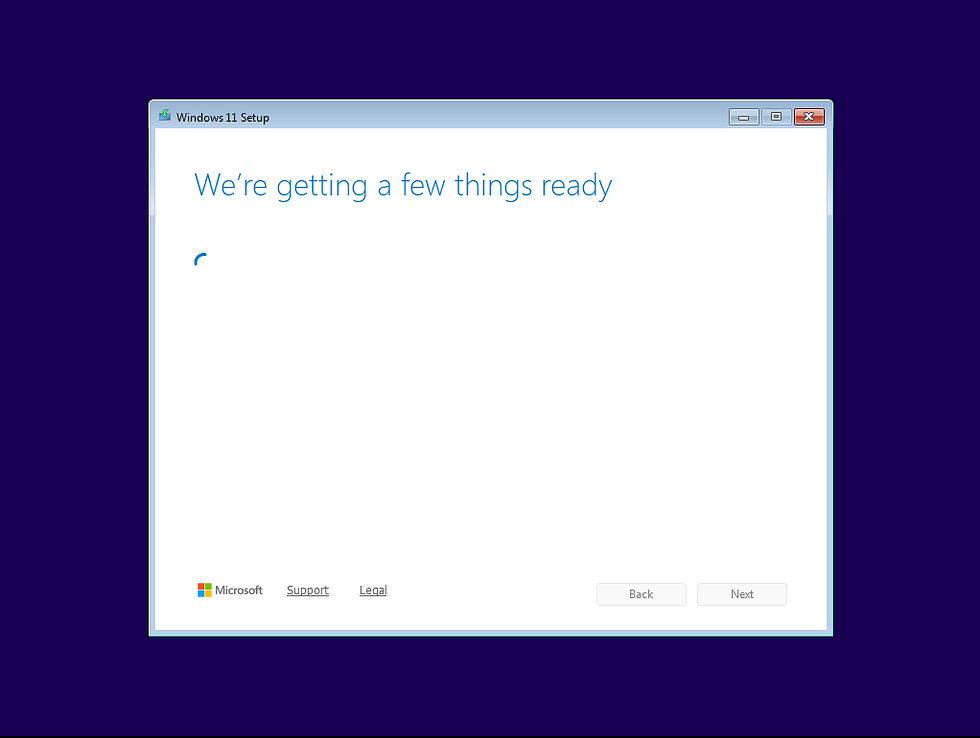
Fenster "Windows 11 Setup - Applicable notices and license terms"
Accept >

Fenster "Windows 11 Setup - Please wait"
….

Fenster "Windows 11 Setup - Select location to install Windows 11"
Auswahl Disc 0 Unallocated Space >
Next >

Fenster "Windows 11 Setup - Ready to install"
Install >

Fenster "Installing Windows 11"
Die Installation wird durchgeführt…

Fenster "Is this the right country or region?"
Auswahl Switzerland >
Yes >

Fenster "Is this the right keyboard layout or input method?"
Auswahl Swiss German >
Yes >

Fenster "Want to add a second keyboard layout?"
Skip >

Es wird nun nach verfügbaren Updates gesucht…

Fenster "Let's set things up for your work or school"
Eingabe Sign in thomas@swiss-schmid.ch
Next >

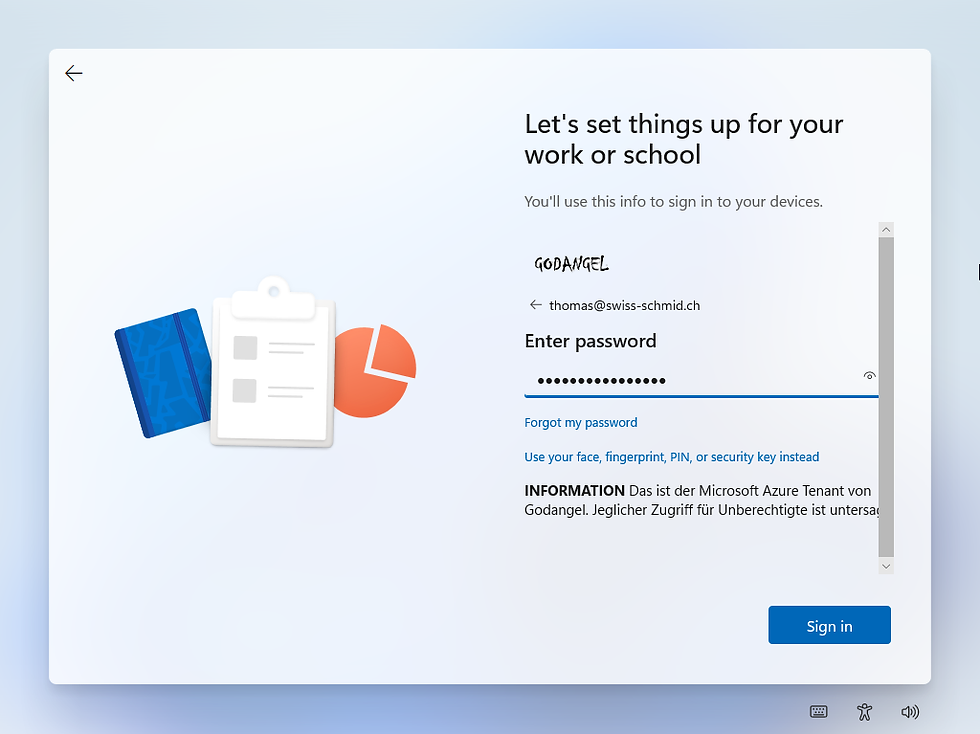
Fenster "Let's set things up for your work or school - Enter password"
Eingabe Enter password *************
Sign in >
Fenster "Let's set things up for your work or school - Verify your identity"
Use a verification code >

Fenster "Let's set things up for your work or school - Enter code"
Eingabe ******
Verify >

Fenster "Please wait while we set up your device…"

Fenster "Let Microsoft and apps use your location"
Yes >
Accept >

Fenster "Find my device"
Yes >
Accept >

Fenster "Send diagnostic data to Microsoft"
Include Optional >
Accept >

Fenster "Improve inking & typing"
Yes >
Accept >

Fenster "Get tailored experiences with diagnostic data"
Yes >
Accept >

Fenster "Getting things ready for you"

Fenster "This might take a few minutes."

Fenster "Use Windows Hello with your account"
OK >

Fenster "Sign in with a passkey"
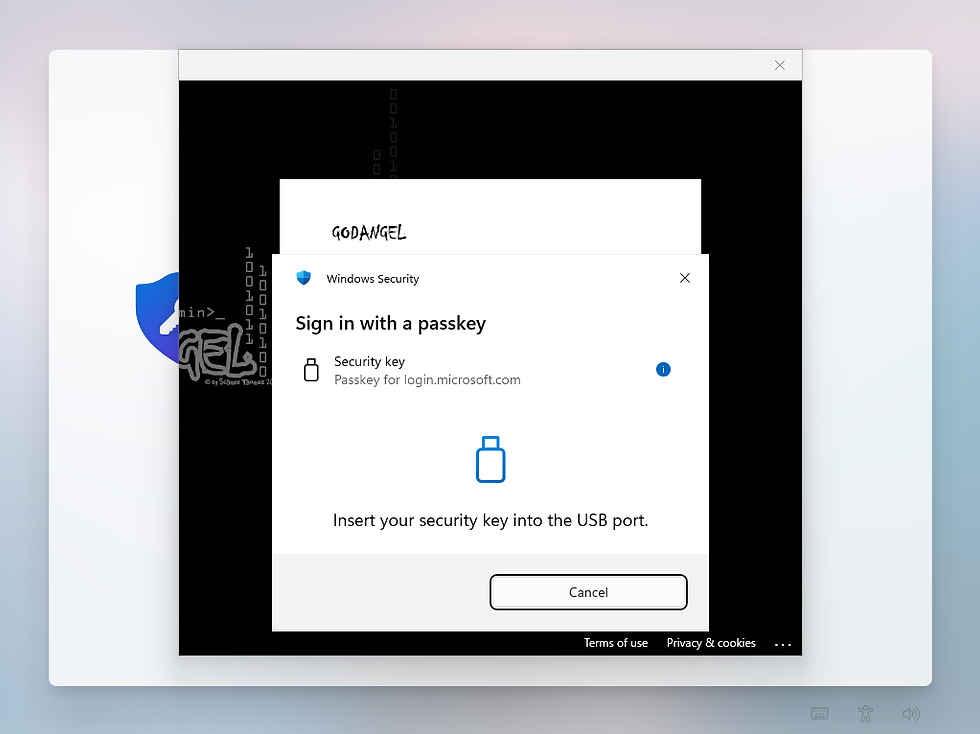
Sie müssen nun ihren YubiKey über die Vmware Workstation in die VM reinmappen.

Fenster "Sign in with a passkey"
Eingabe Security Key PIN ********
OK >

Fenster "Sign in with a passkey"
Berühren sie nun ihren Yubikey um zu verfizieren, dass sie den Yubikey besitzen und dieser bei Ihnen vor Ort ist.

Fenster "Set up a PIN"

Fenster "Set up a PIN"
Eingabe New PIN *******
Eingabe Confirm PIN *******
OK >

Fenster "All set!"
OK >
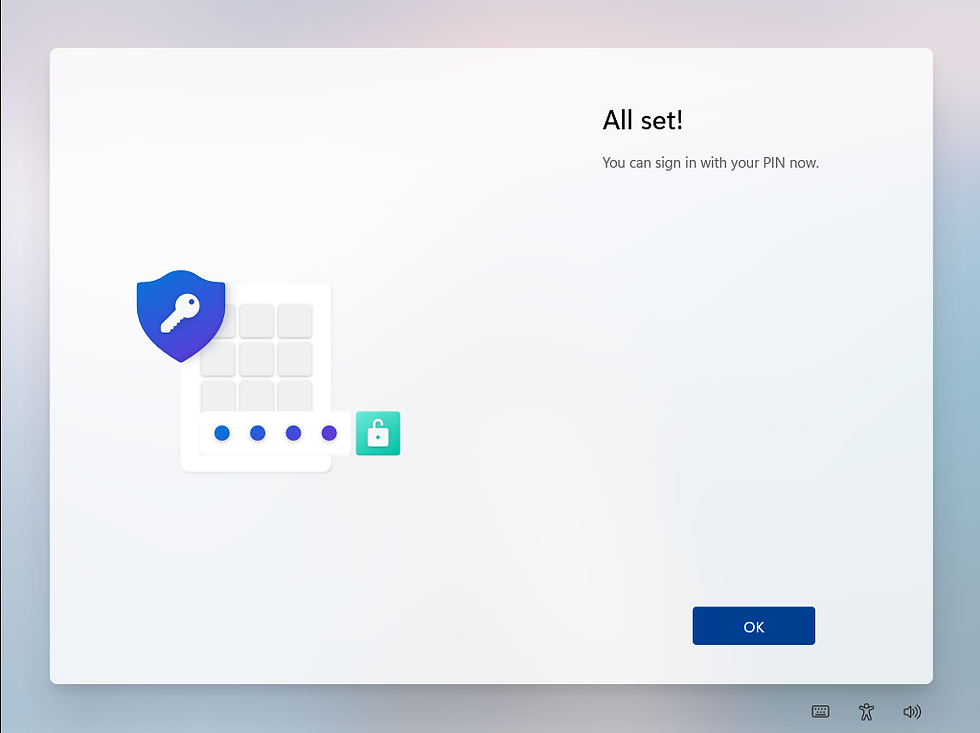
Das Windows 11 wurde installiert und ist jetzt einsatzbereit.

Powered by

Kommentare