
Windows 365 Link | 3.2 Windows 365 Link Zeitkonfiguration

Um für den Windows 365 Link die Zeitkonfiguration automatisch einstellen zu lassen, sollte eine Intune Richtlinie erstellt werden, die erlaubt, dass Applikationen die Location verwenden dürfen.
Fenster "Microsoft Intune admin center"
Menü "Devices" >
Menü "Windows" >
Fenster "Microsoft Intune admin center - Windows | Windows devices"
Menü "Configuration" >
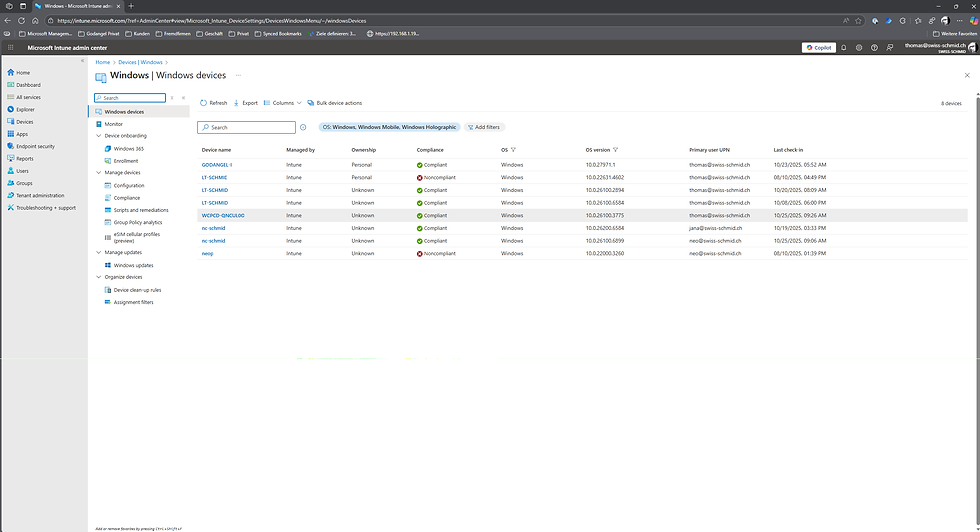
Fenster "Microsoft Intune admin center - Devices | Configuration"
Register "Policies" >
Create >
+ New Policy >

Fenster "Microsoft Intune admin center - Devices | Configuration - Create a profile"
Auswahl Platform Windows 10 and later >
Auswahl Profile type Settings catalog >
Create >

Fenster "Microsoft Intune admin center - Create profile"
Register "1 Basics" >
Eingabe Name Windows 365 Link Zeitzonenerkennung
Next >

Fenster "Microsoft Intune admin center - Create profile"
Register "2 Configuration settings"
+Add settings >

Fenster "Settings picker"
Eingabe access location
Search >
Privacy >

Fenster "Settings picker"
[x] Let Apps Access Location

Fenster "Microsoft Intune admin center - Create profile"
Register "2 Configuration settings"
Auswahl Let Apps Access Location Force allow >
Next >

Fenster "Microsoft Intune admin center - Create profile"
Register "3 Scope tags" >
Alles auf Standard belassen.
Next >
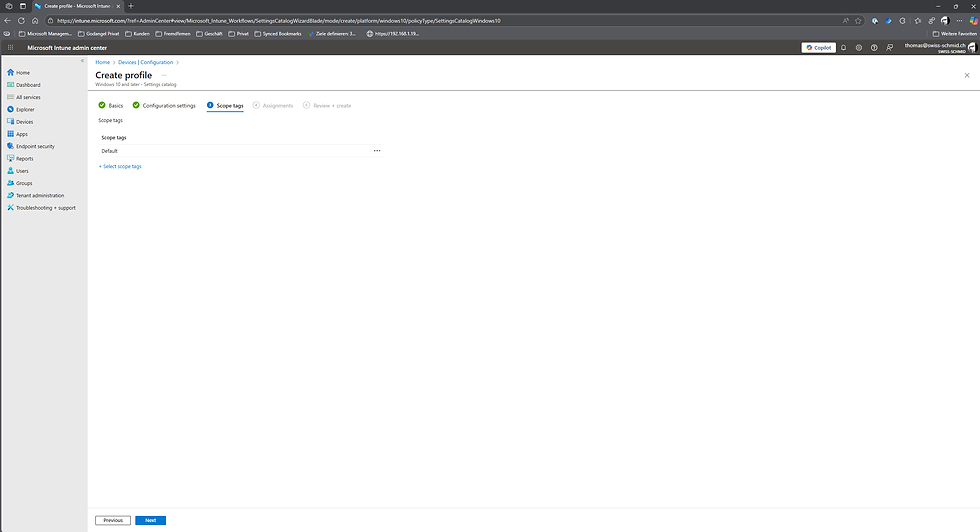
Fenster "Microsoft Intune admin center - Create profile"
Register "4 Assignments" >
Abschnitt "Included groups"
+Add all devices >

Fenster "Microsoft Intune admin center - Create profile"
Register "4 Assignments" >
Abschnitt "Included groups"
Next >

Fenster "Microsoft Intune admin center - Create profile"
Register "5 Review + create" >
Create >

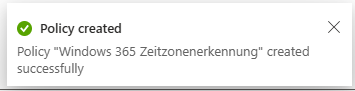
Nach einer gewissen Zeit sollte der Windows 365 Link die Richtlinie erhalten und die Zeitzonen bzw. die Zeiteinstellungen durchführen können.
Powered by

Diese Themen könnten sie auch interessieren


Kommentare